
An image can become a PDF page without much effort, but the result may be unexpectedly huge, tiny, sideways, or inconsistent. A useful image-based PDF starts with deliberate source preparation. Page size, pixel dimensions, aspect ratio, and intended use all matter.
Pixels are not the same as paper size
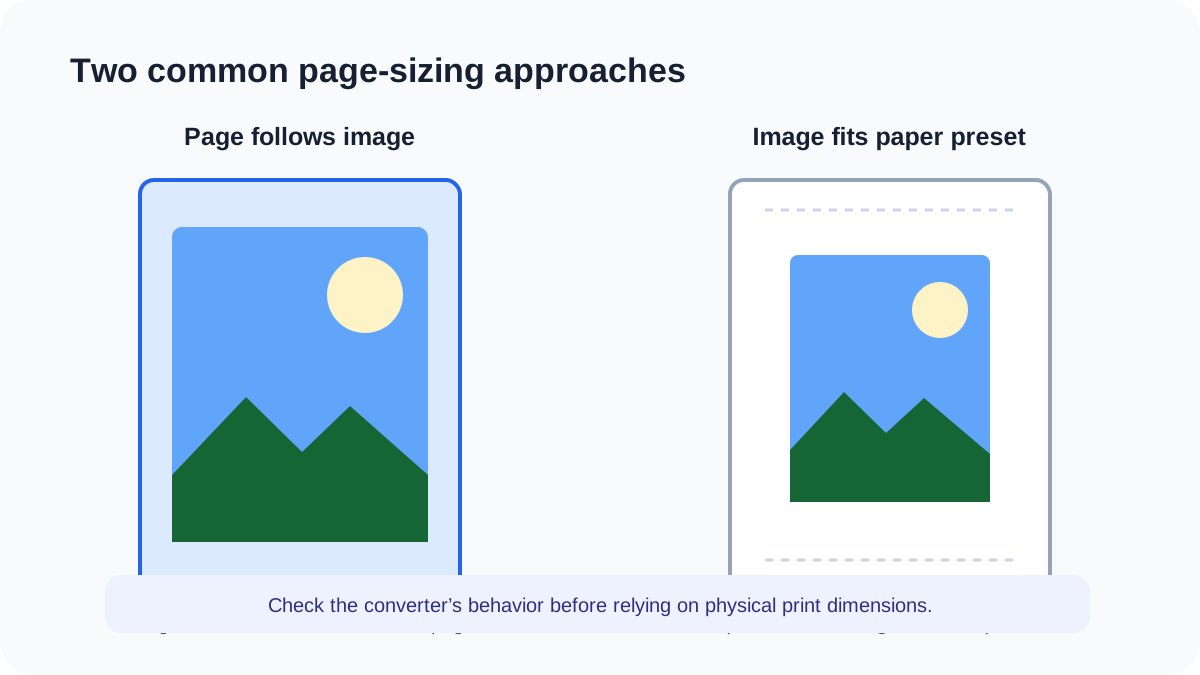
An image is usually described by pixel width and height. Paper is described by physical dimensions such as millimetres or inches. A converter must decide how those pixels map to a PDF page. Some applications fit the image onto A4 or Letter paper; others create a page that follows the image dimensions.
A high pixel count can be useful for detail but can also produce a large file or page. The best size depends on whether the document will be viewed on screen, printed, or used only as a visual record.
Prepare the images before conversion
Do the visual cleanup while each source is still easy to inspect.
Crop unrelated surroundings
Remove desk edges, fingers, and unused background so the page focuses on the document.
Correct orientation
Rotate each image upright before combining it, especially when portrait and landscape captures are mixed.
Use a consistent sequence
Rename or arrange files in reading order and check that no page was captured twice.
Resize only when necessary
Keep enough detail for the intended use, but avoid camera-sized images when a smaller screen document is sufficient.
Convert and inspect
Open the PDF at normal zoom and, when relevant, print one representative page before distributing it.
Choose a source format deliberately
JPEG is well suited to photographs and uses lossy compression. Re-saving it repeatedly can introduce visible blocks or halos. PNG uses lossless compression and can preserve sharp interface graphics or transparency, but it may be larger for photographs.
The verified PDFWhirl JPG-to-PDF worker accepts JPEG input and sizes each PDF page to the source image dimensions. It does not currently offer public A4, Letter, or margin presets, so prepare dimensions before upload when physical page size is important.
Common mistakes
Most sizing surprises are visible in the source set before conversion.
- Combining images without checking their orientation and order.
- Assuming every converter interprets DPI metadata in the same way.
- Using full camera resolution when the document is only for quick screen reference.
- Downscaling small text until it becomes difficult to read.
- Expecting an image-only PDF to contain selectable or searchable text.
Limitations of image-based PDFs
Text inside an embedded image remains pixels unless a separate OCR process adds a text layer. Screen readers cannot infer a meaningful reading structure from a page photograph alone. Image conversion also does not add headings, language information, form fields, or other accessibility semantics.
Color, sharpness, and printed size can vary between viewers, printers, and conversion applications. Keep the original images when they are the primary record, and test the output in its intended destination.


