
Merging PDFs sounds simple: place one document after another and save the result. Problems usually come from preparation rather than the merge itself. A missing attachment, an unnoticed blank page, a sideways scan, or the wrong file order can make a technically successful result unusable. This guide explains a careful process that works with any capable PDF merger.
Start with an inventory, not the merge button
List the documents that belong in the final file and note the page count of each source. If the finished document should contain a cover sheet, a twelve-page report, and a two-page appendix, the expected total is fifteen pages. That simple total gives you a quick way to detect a missing file or accidental duplicate.
Open every source before combining it. Confirm that it is the document you expect, that its last page is present, and that it does not stop at a password prompt. A merger cannot recover pages that are already absent from an input file.
- Use short, distinct filenames while arranging the sources.
- Move obsolete drafts away from the working folder.
- Record the expected page total before processing.
A reliable merge workflow
The exact labels vary between applications, but the review sequence should remain the same.
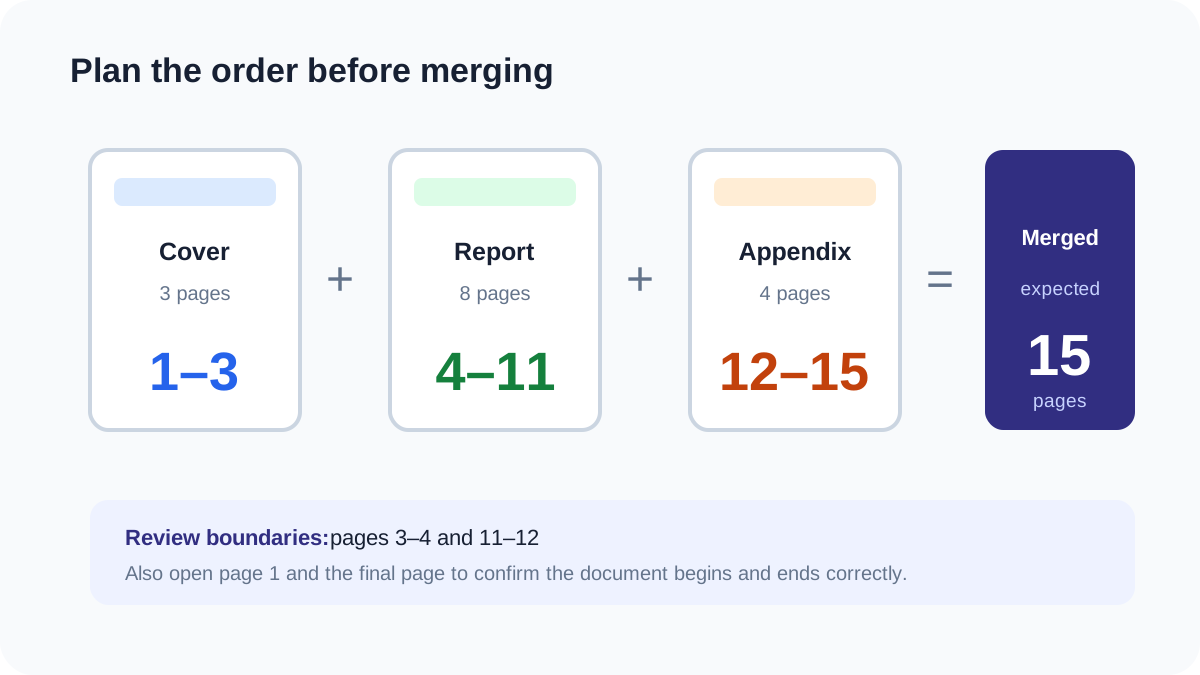
Put the sources in final order
Decide whether supporting material belongs before or after the main document. Do not rely only on alphabetical filenames.
Correct obvious page problems
Rotate sideways pages and remove accidental scanner blanks before merging so the combined file needs fewer follow-up changes.
Combine the whole documents
Add each source once, check the visible order, and start the merge operation.
Verify the result from beginning to end
Compare the output page count with your inventory, inspect every transition between source files, and open the final page.
Save a reviewed copy
Use a meaningful filename and keep the untouched sources until the combined document has been accepted.
Why pages appear to be missing
A page can be present but easy to overlook. Mixed page sizes, large white margins, or a scan of an empty reverse side can look like a gap. Compare page thumbnails as well as the page counter before concluding that data was removed.
The wrong source version was selected
Similar filenames such as final, final-2, and final-approved are a common source of mistakes. Open files by content, not by name alone.
A source was already incomplete
If the source ends early or contains a damaged page object, merging it cannot reconstruct the missing material. Return to the application that created the PDF and export it again.
The viewer is showing an old copy
Close the old document tab and reopen the newly downloaded file. Browser and desktop viewers can keep an earlier file open even when a replacement has the same name.
Common mistakes to avoid
Most merge errors are organizational rather than technical.
- Merging first and deciding the order afterward.
- Deleting the source files before checking the output.
- Assuming bookmarks, forms, signatures, and attachments will behave exactly like ordinary pages.
- Checking only the first page instead of every document boundary.
- Treating a smaller page size as evidence that a page disappeared.
Limitations of page-based merging
A page merger is designed to append page content. Document-level features may need separate review. Digital signatures can become invalid when a signed document is changed, form field names can conflict, and bookmarks may not be rebuilt into one coherent outline.
If those features are essential, keep the original signed or interactive files and test the combined result in the software used by the recipient. No merging method can promise that every feature from every PDF producer will survive unchanged.


