
A large PDF is often easier to use when it is divided by subject, chapter, recipient, or record type. Good splitting is not simply cutting every fixed number of pages. The output files should remain understandable when they are opened on their own.
Choose boundaries that make sense to a reader
Review the table of contents, section headings, repeated forms, or visible document breaks. Record the first and last page of each logical unit. If printed page numbers differ from the PDF viewer’s counter, write down both so you do not enter the wrong range.
Include context that a recipient needs. A table that continues onto the next page, a signature page, or notes attached to a form should usually stay with the material they explain.
Step-by-step splitting process
Work from a copy until all outputs have been reviewed.
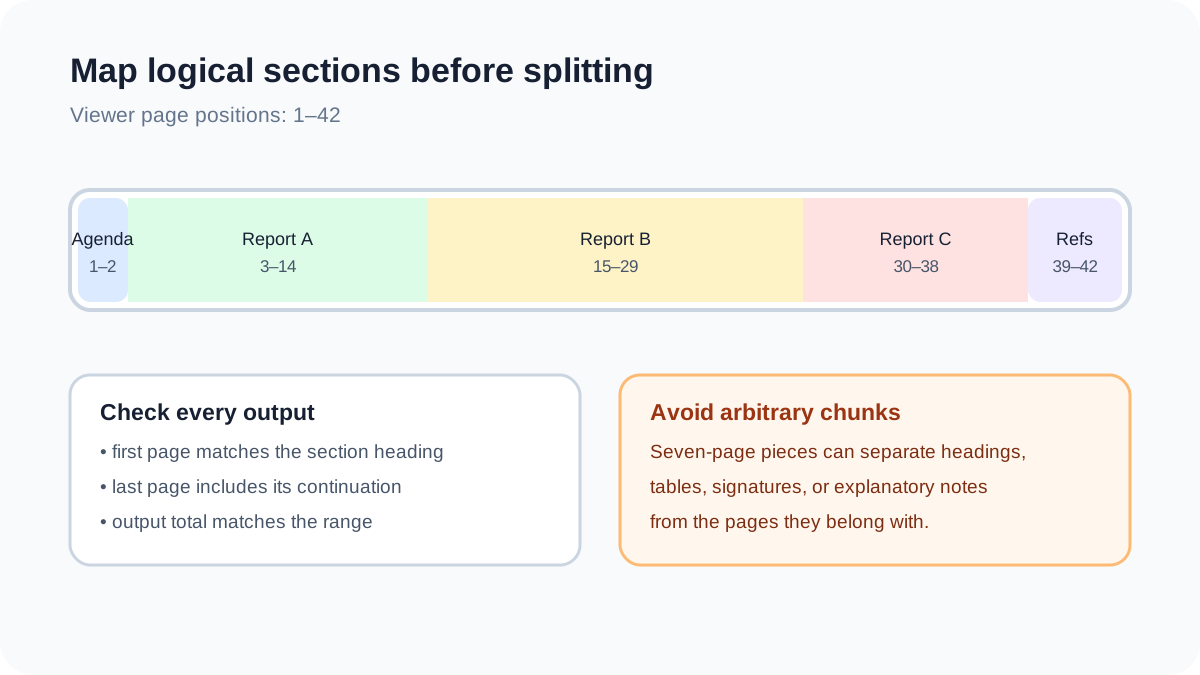
Map the document
Create a simple list such as introduction 1–4, project A 5–18, project B 19–31, and appendices 32–40.
Check viewer page numbers
Use the page positions displayed by the splitting application, which may not match numbers printed on the pages.
Enter non-empty ranges
Make sure each start and end value exists and that important continuation pages are included.
Create and name the outputs
Use names that describe the content rather than only split-1 or part-2.
Verify first and last pages
Open every output, check its total, and inspect both boundaries for missing context.
When one-file-per-page is appropriate
Individual page output is useful for single-page receipts, certificates, or forms that must be routed independently. It is a poor fit for letters, tables, or records that continue across pages because the context becomes separated.
Before creating hundreds of outputs, confirm that the destination can accept and organize them. A folder full of numbered filenames can be harder to use than the original document.
Common mistakes
A range can be syntactically valid while still dividing the content at the wrong place.
- Using printed page labels instead of the viewer’s page positions.
- Leaving a heading at the end of one file and its content in the next.
- Forgetting cover pages, legends, or signature pages that provide context.
- Assuming every output downloaded successfully without opening it.
- Deleting the original before the smaller documents are accepted.
Limitations and file size
Splitting does not necessarily reduce the total storage used by all parts. Shared fonts, images, and document resources may be copied into more than one output. The purpose is organization or delivery, not a guaranteed compression ratio.
PDFWhirl’s verified Split PDF path supports custom page ranges and one-file-per-page output. It does not split to a target number of megabytes, and it does not promise that document-level bookmarks or interactive behavior will be rebuilt for each part.


